
Directory Sync · Setup guides
Microsoft Entra ID Directory Sync
Connect a Microsoft Entra ID (formerly Azure Active Directory) tenant to OrbitID with SCIM 2.0. You need an Entra ID administrator account, and the SCIM endpoint and bearer token from the directory you created in OrbitID (see Directory Sync).
Step 1: Create application
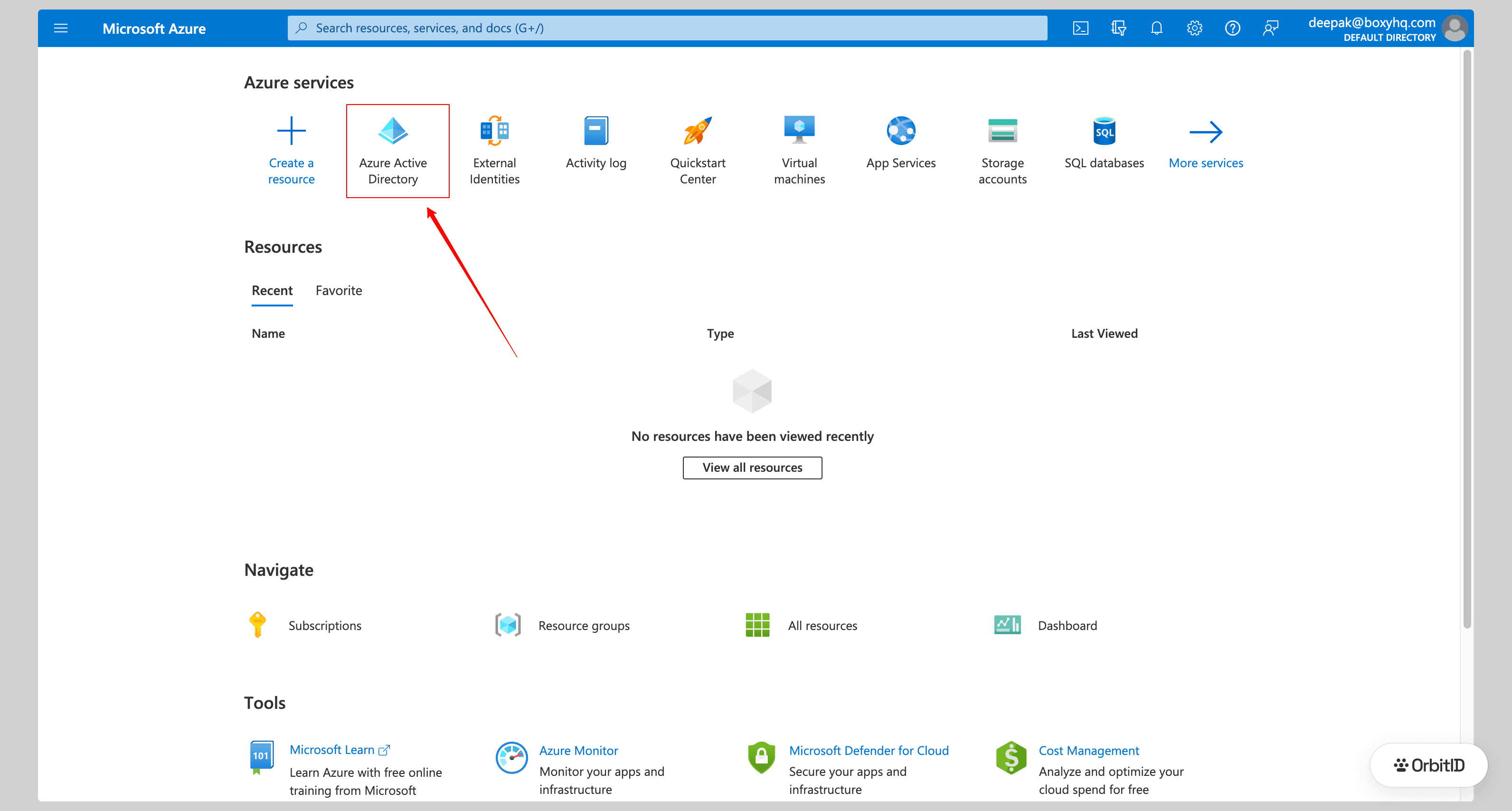
In the Azure portal open Microsoft Entra ID (shown as Azure Active Directory in older portals).
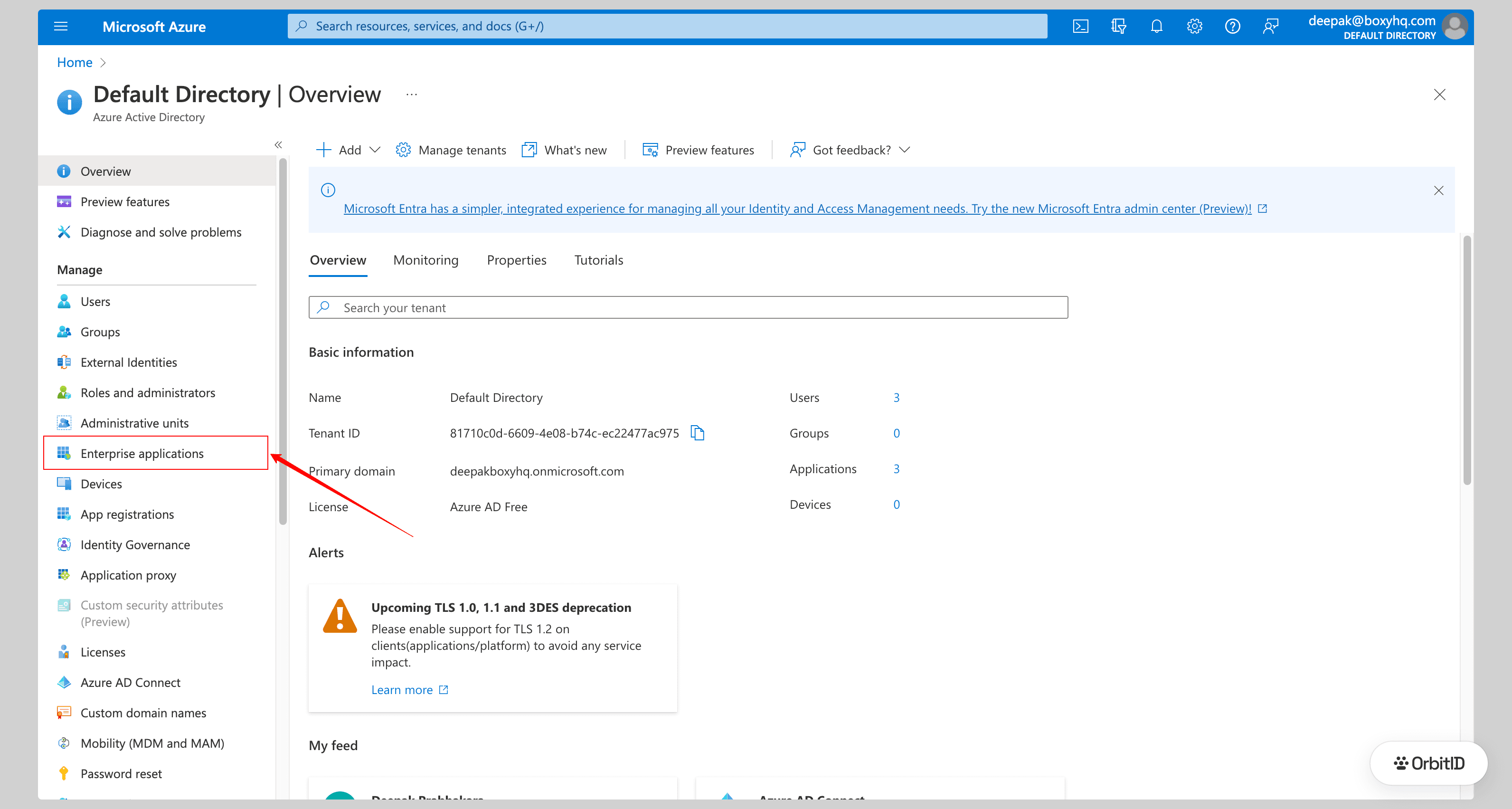
Click Enterprise applications in the left menu.
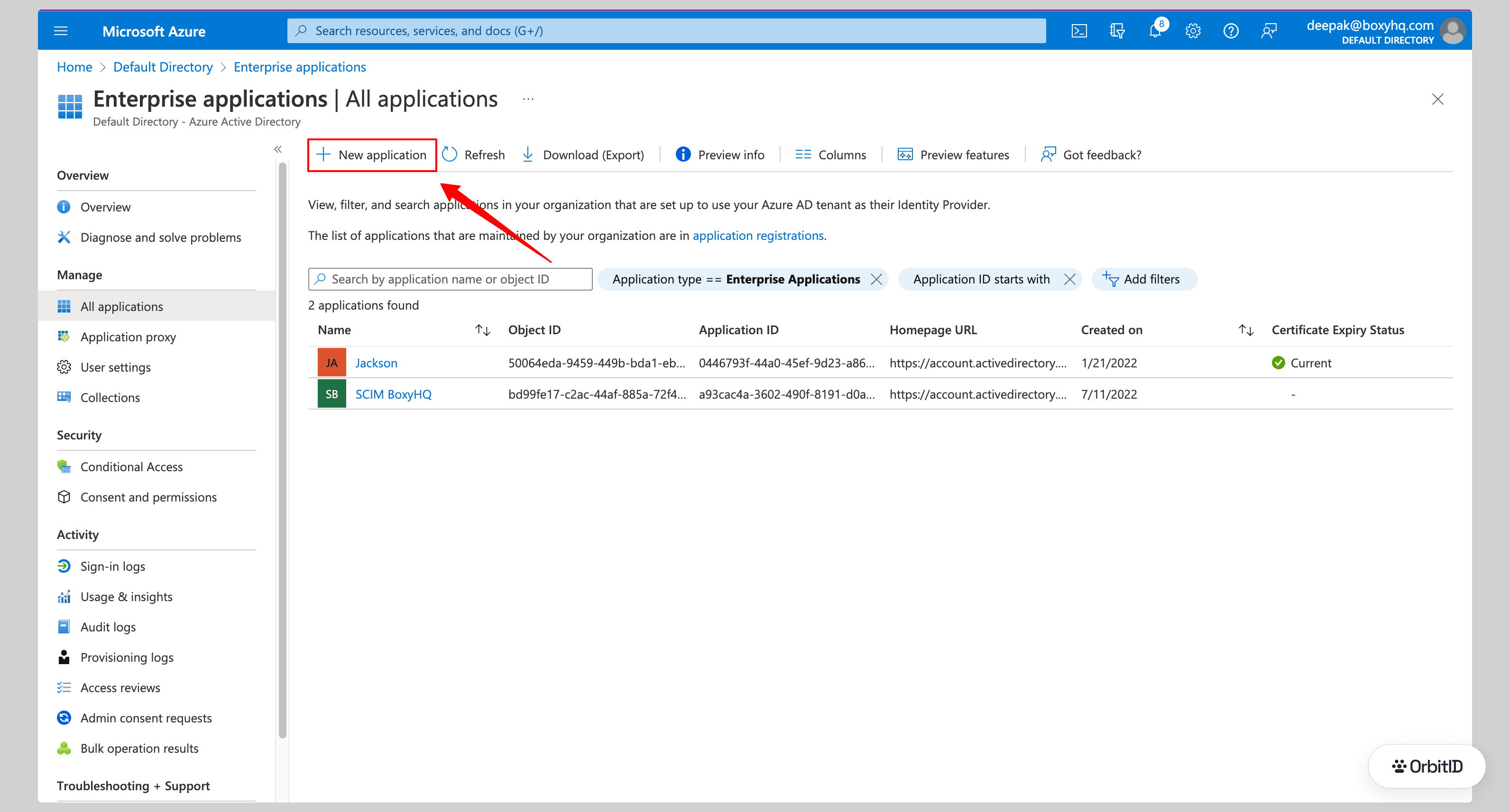
Click New application.
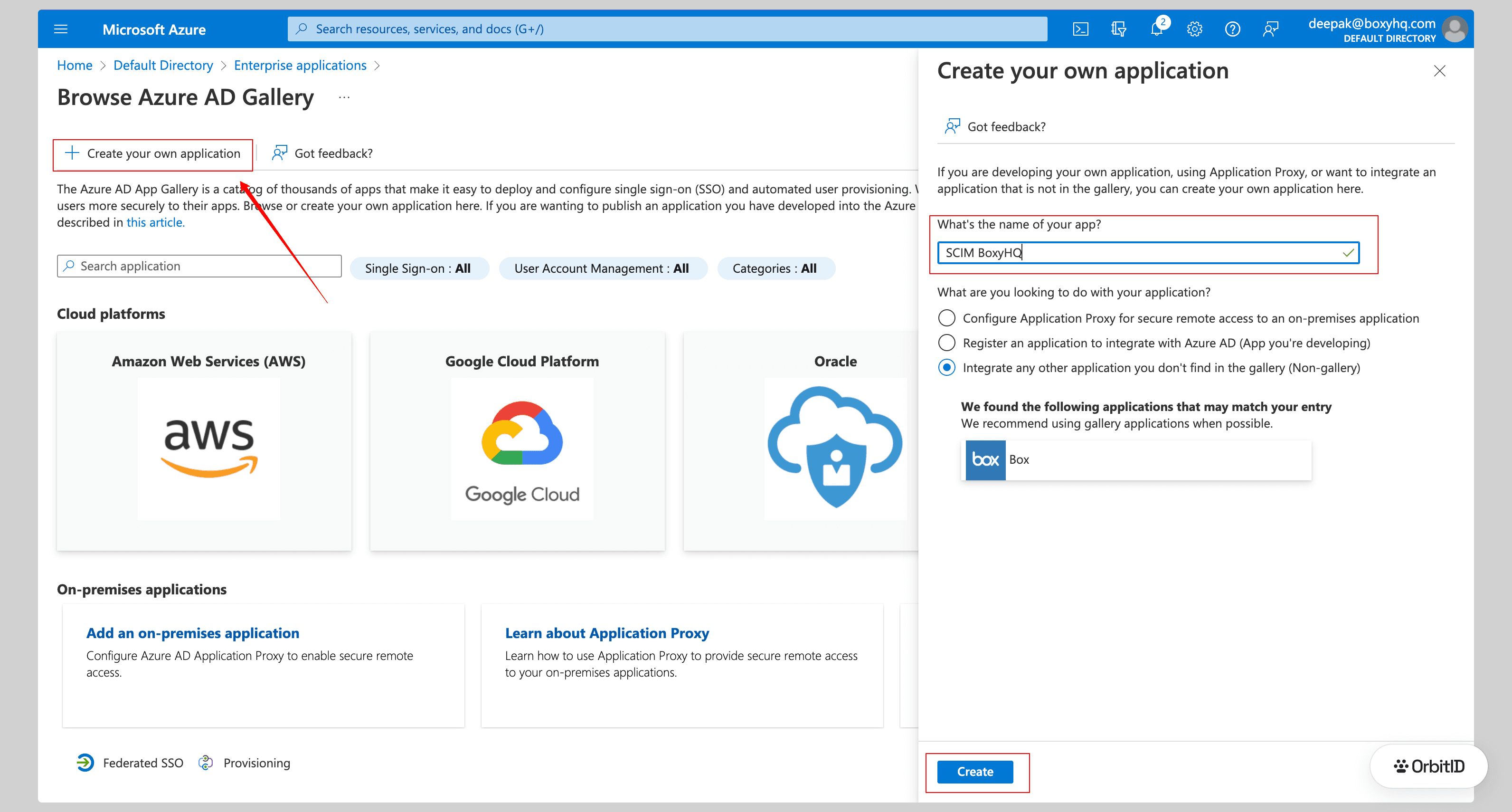
Click Create your own application, enter a name, select Integrate any other application you don't find in the gallery (Non-gallery) and click Create.
Step 2: Configure provisioning
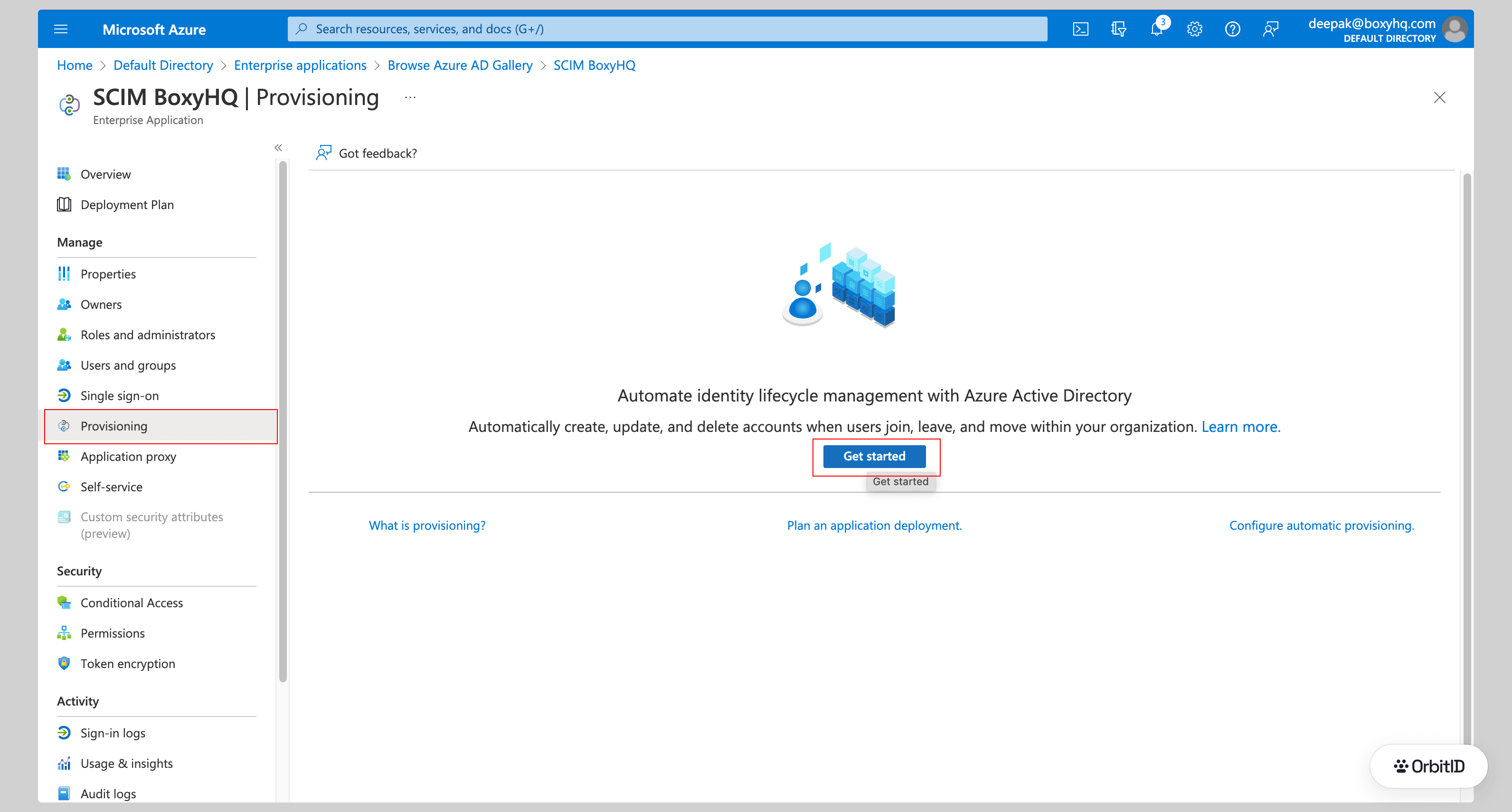
In the new application open Provisioning and click Get started.
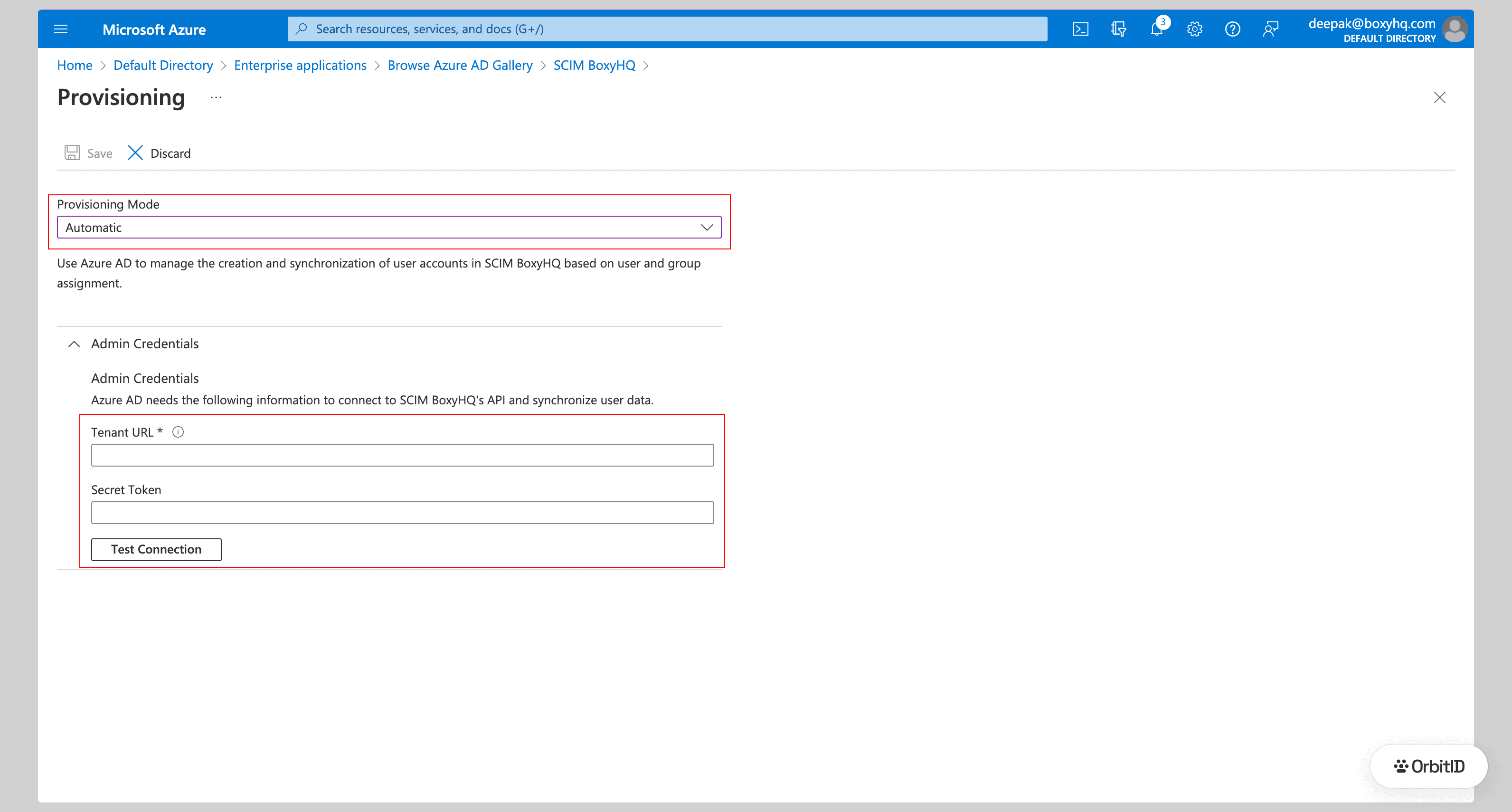
Set Provisioning Mode to Automatic. Under Admin Credentials enter:
- Tenant URL: the SCIM endpoint from OrbitID. For Entra ID it ends with
?aadOptscim062020, which makes Entra send standards-compliant SCIM PATCH requests; paste it exactly as shown. - Secret Token: the bearer token from OrbitID
Click Test Connection, then Save.
Expand Mappings and make sure both Provision Azure Active Directory Users and Provision Azure Active Directory Groups are enabled. Then switch Provisioning Status to On and save.
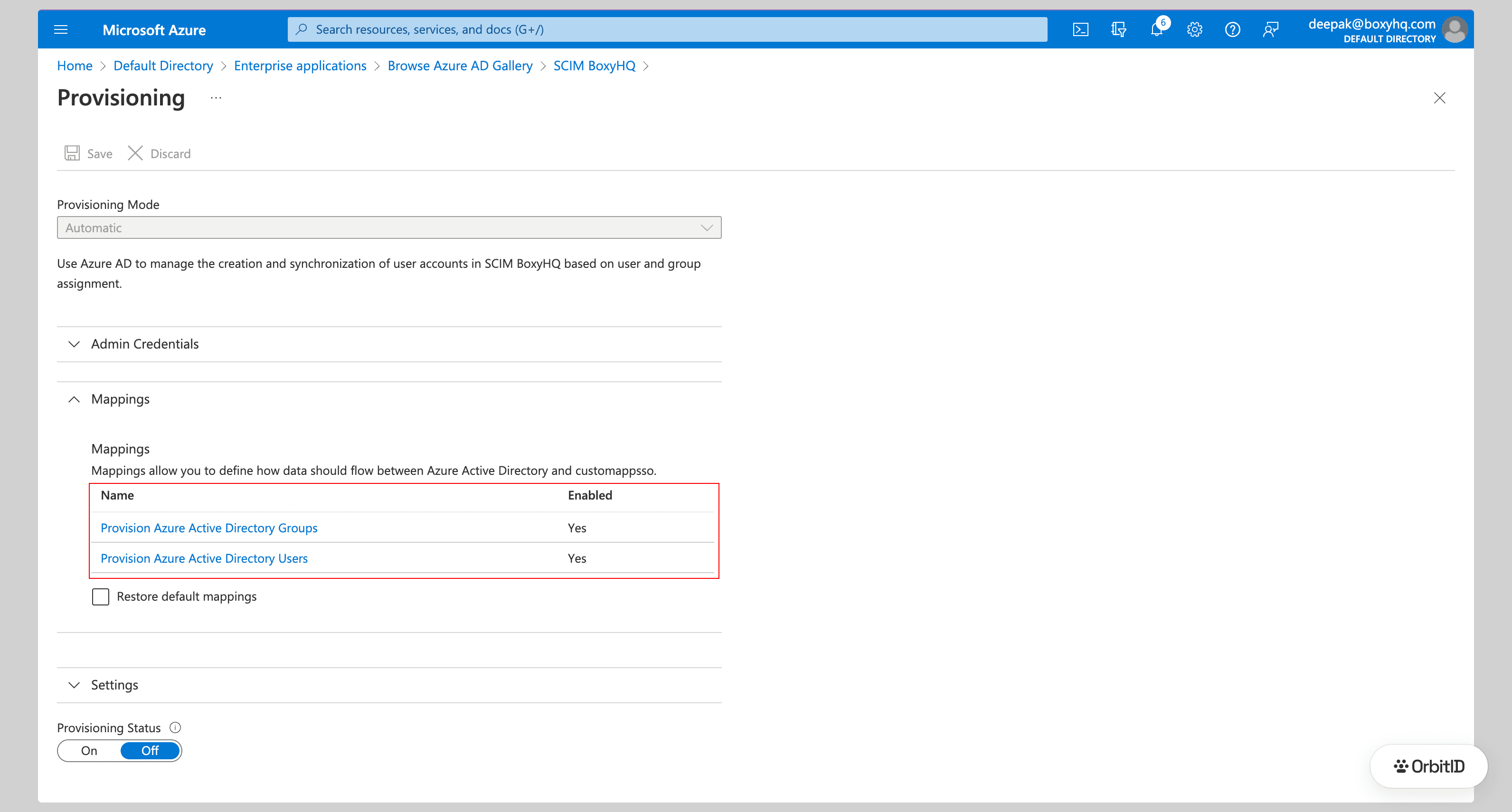
Entra ID runs an initial cycle within a few minutes and then syncs changes roughly every 40 minutes.
Step 3: Assign users and groups
Open Users and groups and click Add user/group.
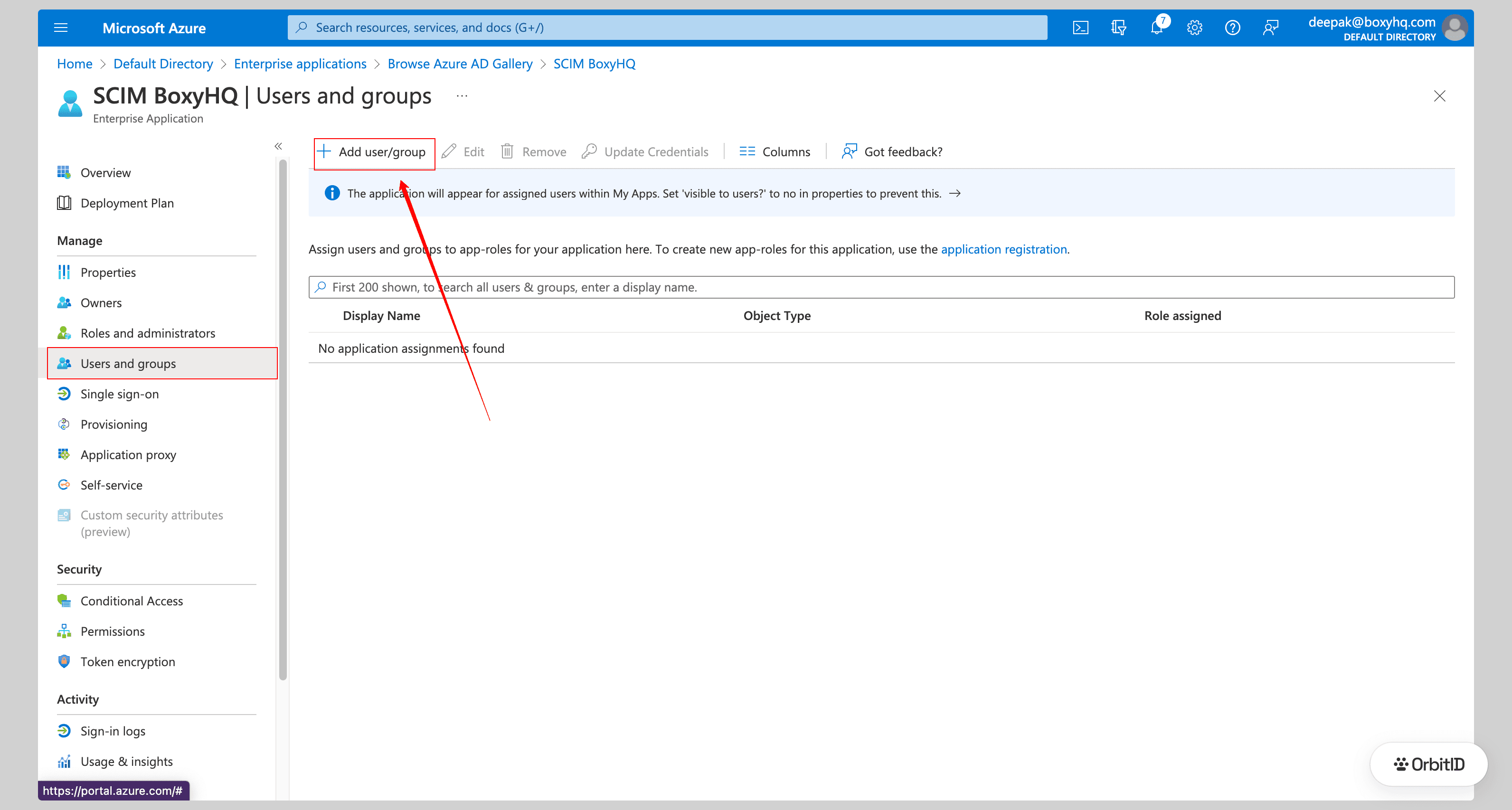
Select the users or groups that should be provisioned, click Select, then Assign. OrbitID emits user.created events as they are provisioned, and group.created and group.user_added events for assigned groups.
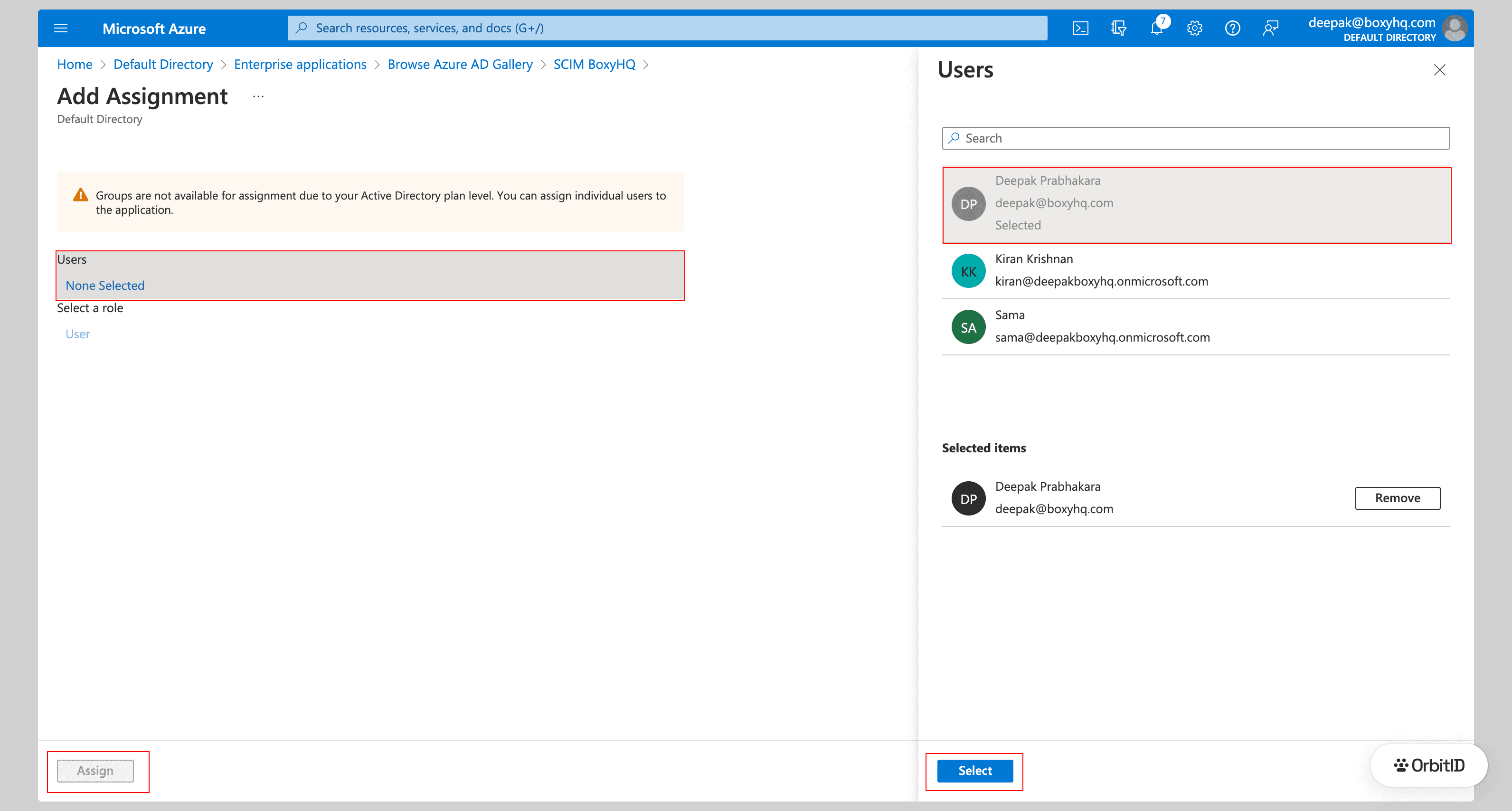
Assigning groups requires an Entra ID P1 or P2 licence; on the free tier you can only assign individual users.