
Directory Sync · Setup guides
Okta Directory Sync
Connect an Okta directory to OrbitID with SCIM 2.0. You need an Okta admin account, and the SCIM endpoint and bearer token from the directory you created in OrbitID (see Directory Sync).
Step 1: Create application
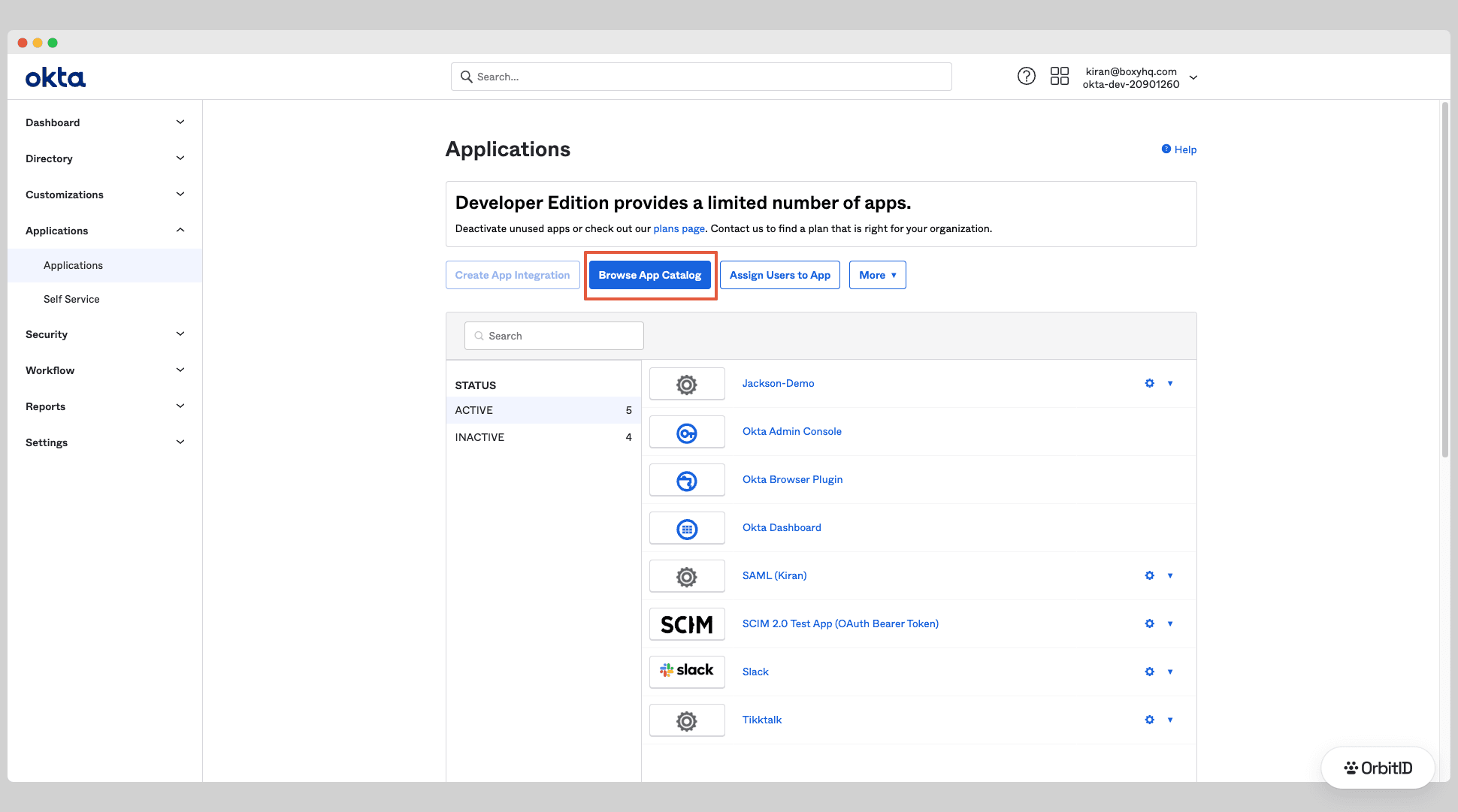
In the Okta admin console open Applications → Applications and click Browse App Catalog.
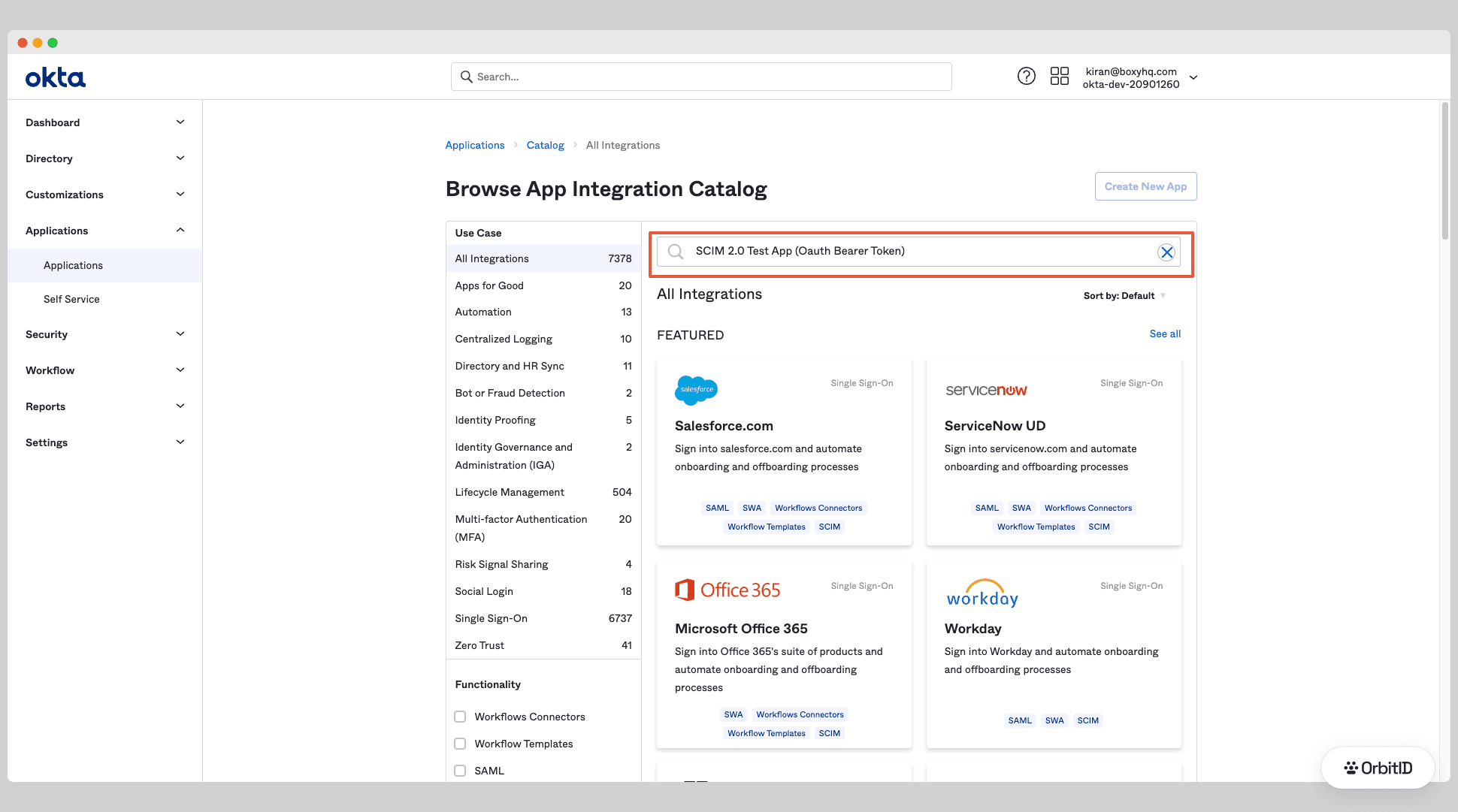
Search for SCIM 2.0 Test App (OAuth Bearer Token) and open it.
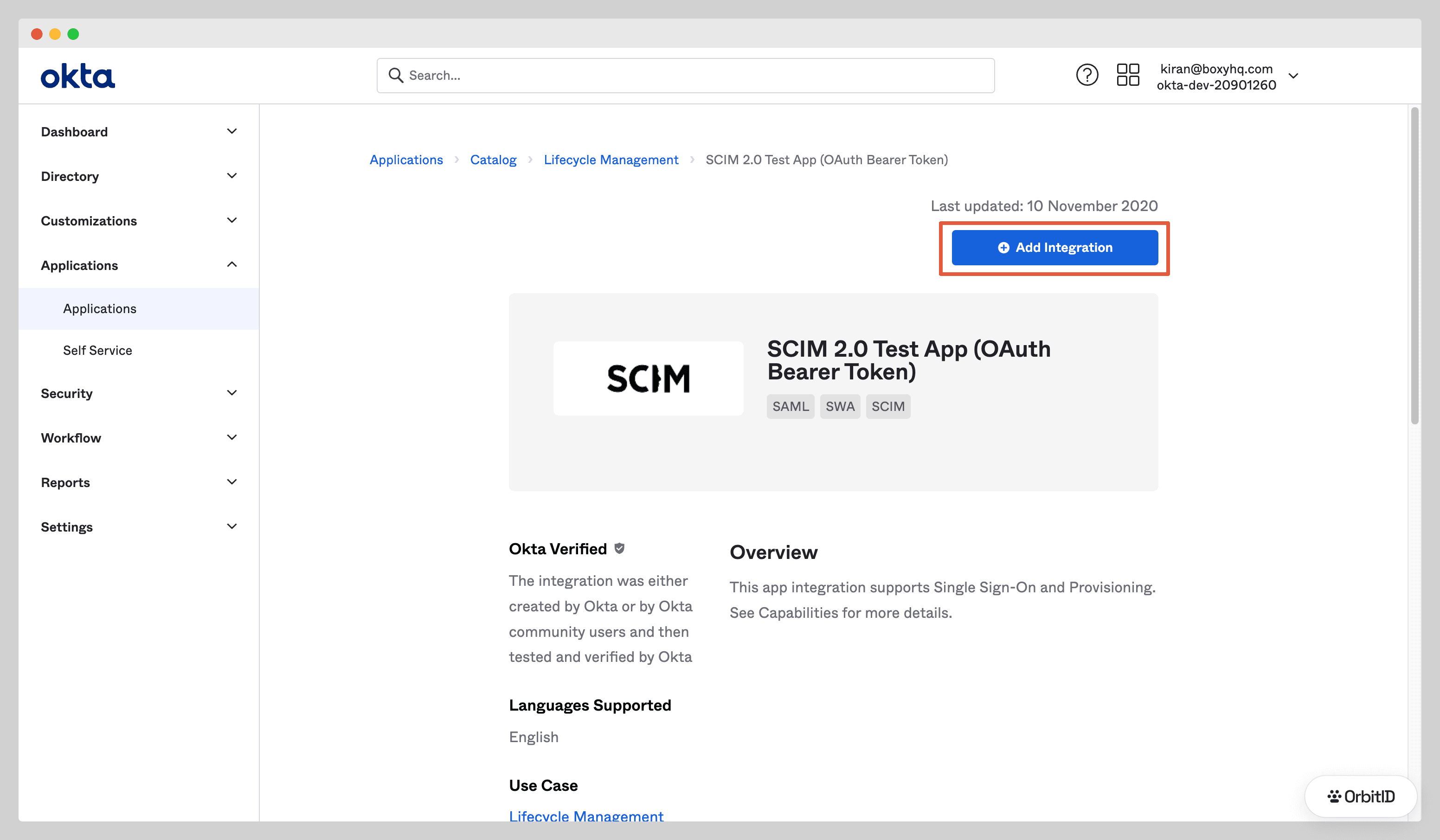
Click Add Integration.
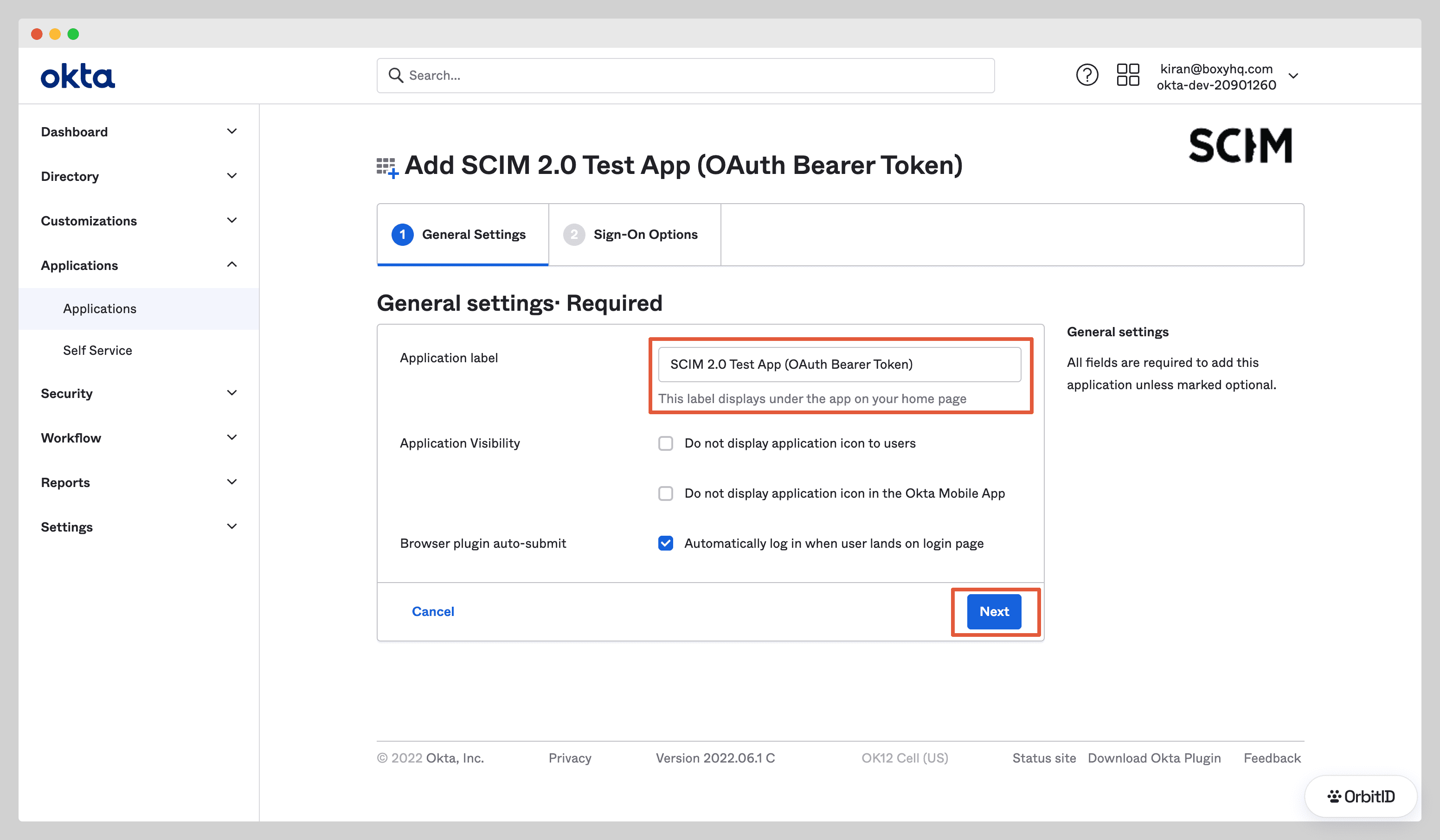
Give it an Application label your admins will recognise, click Next, leave the sign-on options as they are and click Done.
Step 2: Configure provisioning
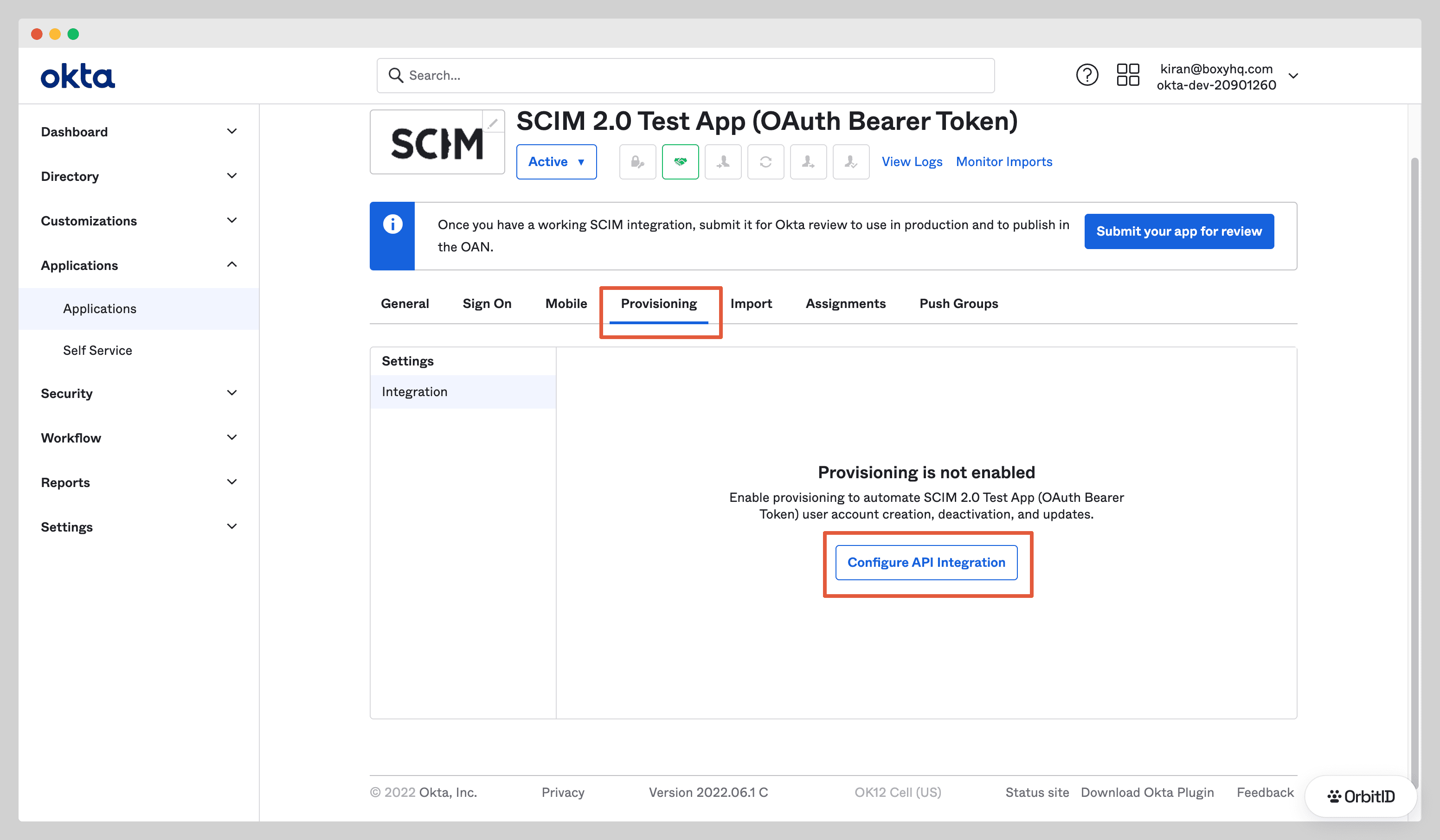
Open the Provisioning tab and click Configure API Integration.
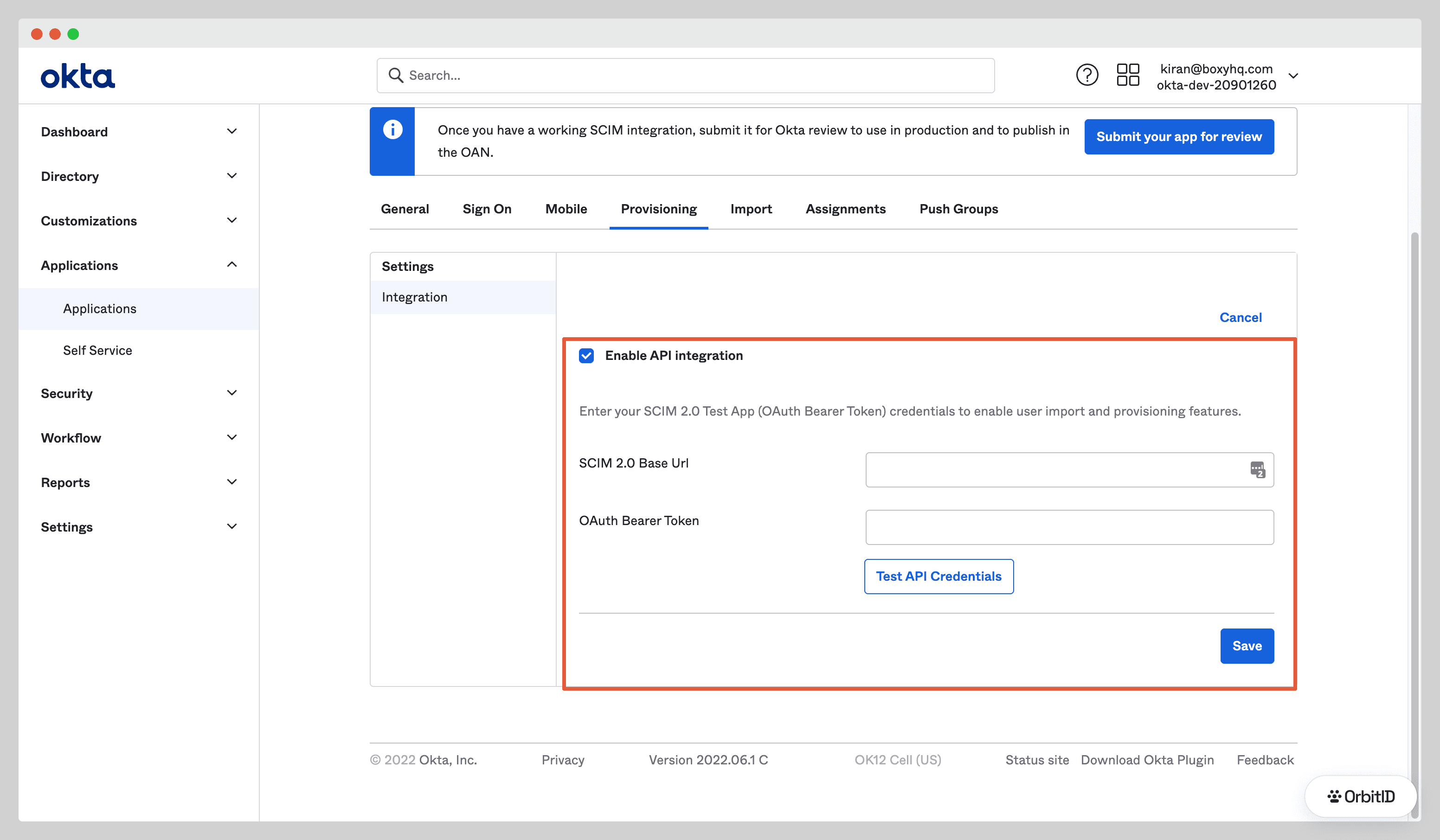
Check Enable API integration and enter:
- SCIM 2.0 Base Url: the SCIM endpoint from OrbitID,
https://app.orbitid.com/api/scim/v2.0/<directoryId> - OAuth Bearer Token: the bearer token from OrbitID
Click Test API Credentials, then Save.
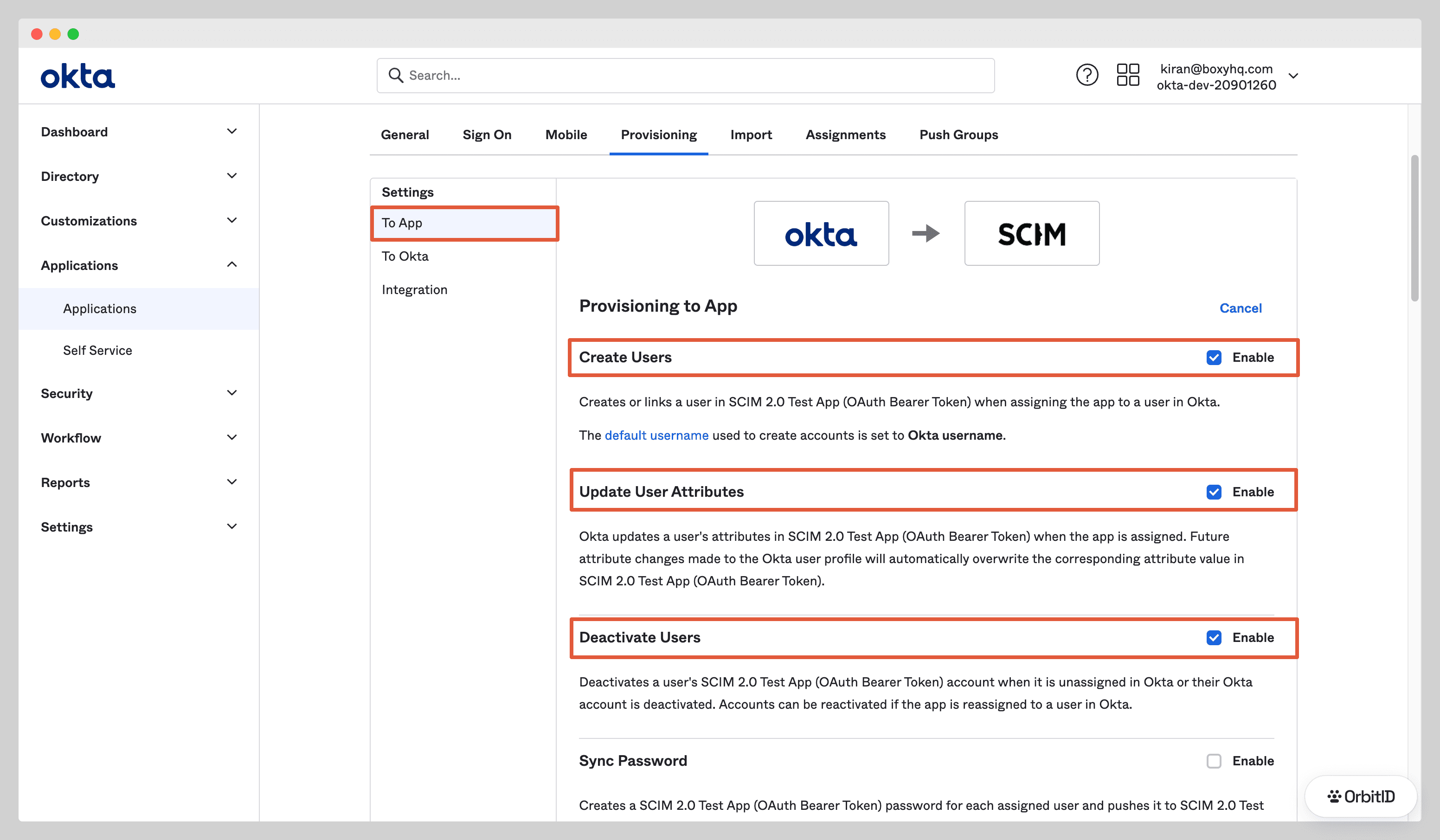
Under Provisioning → To App, click Edit and enable Create Users, Update User Attributes and Deactivate Users, then save.
Step 3: Assign users and groups
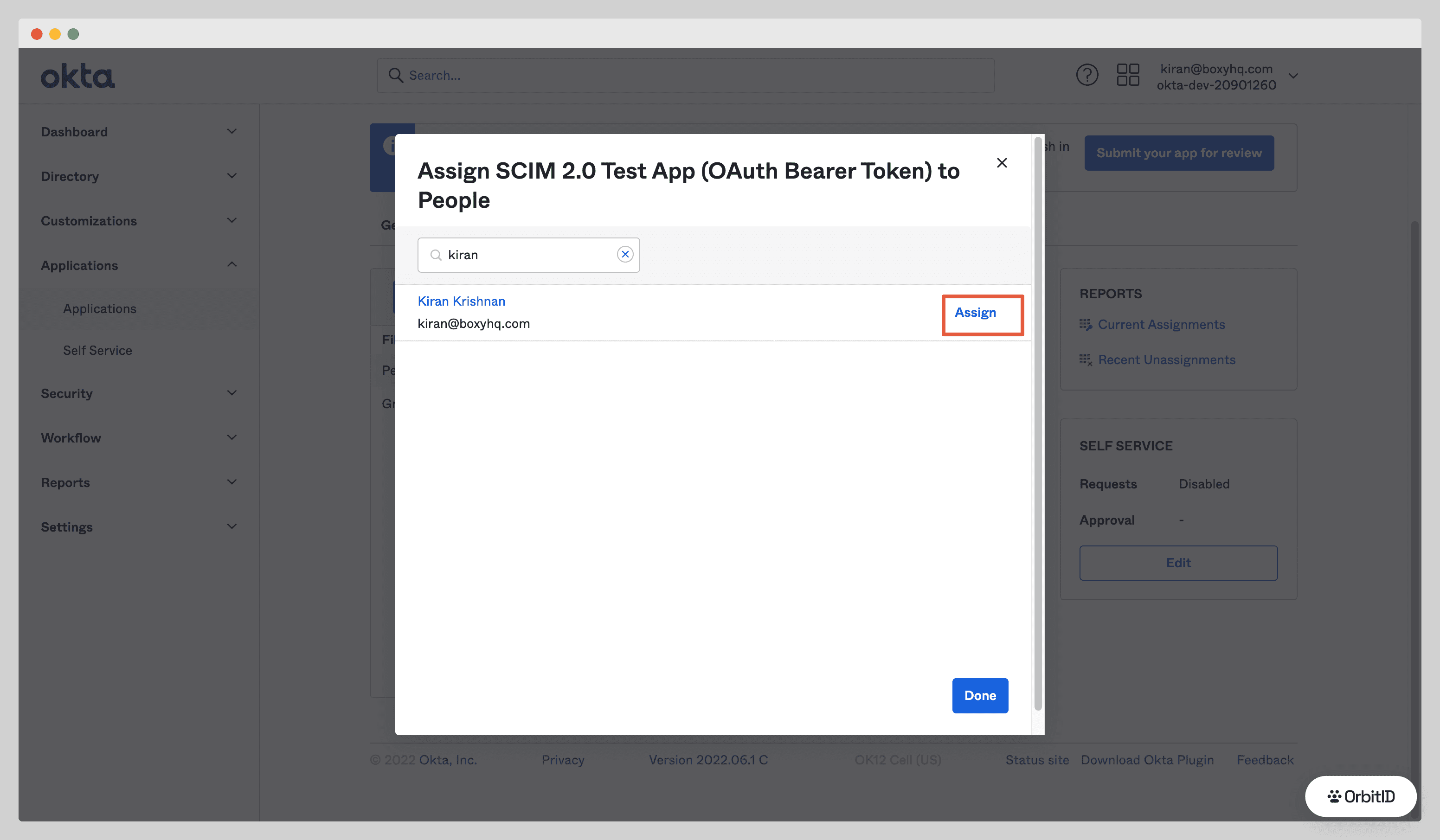
Open the Assignments tab, click Assign and choose Assign to People or Assign to Groups.
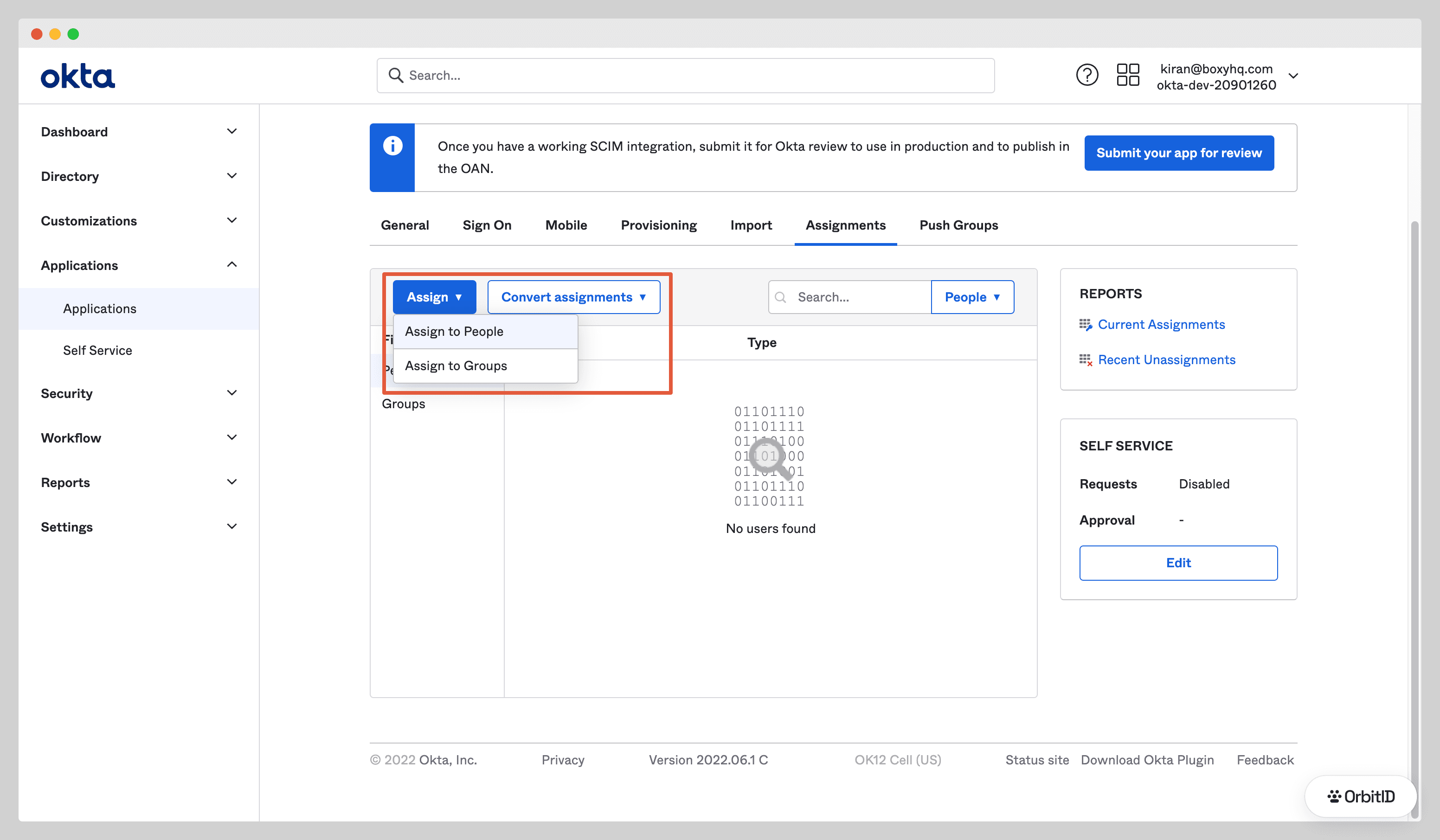
Pick the people or groups that should be provisioned and click Assign.
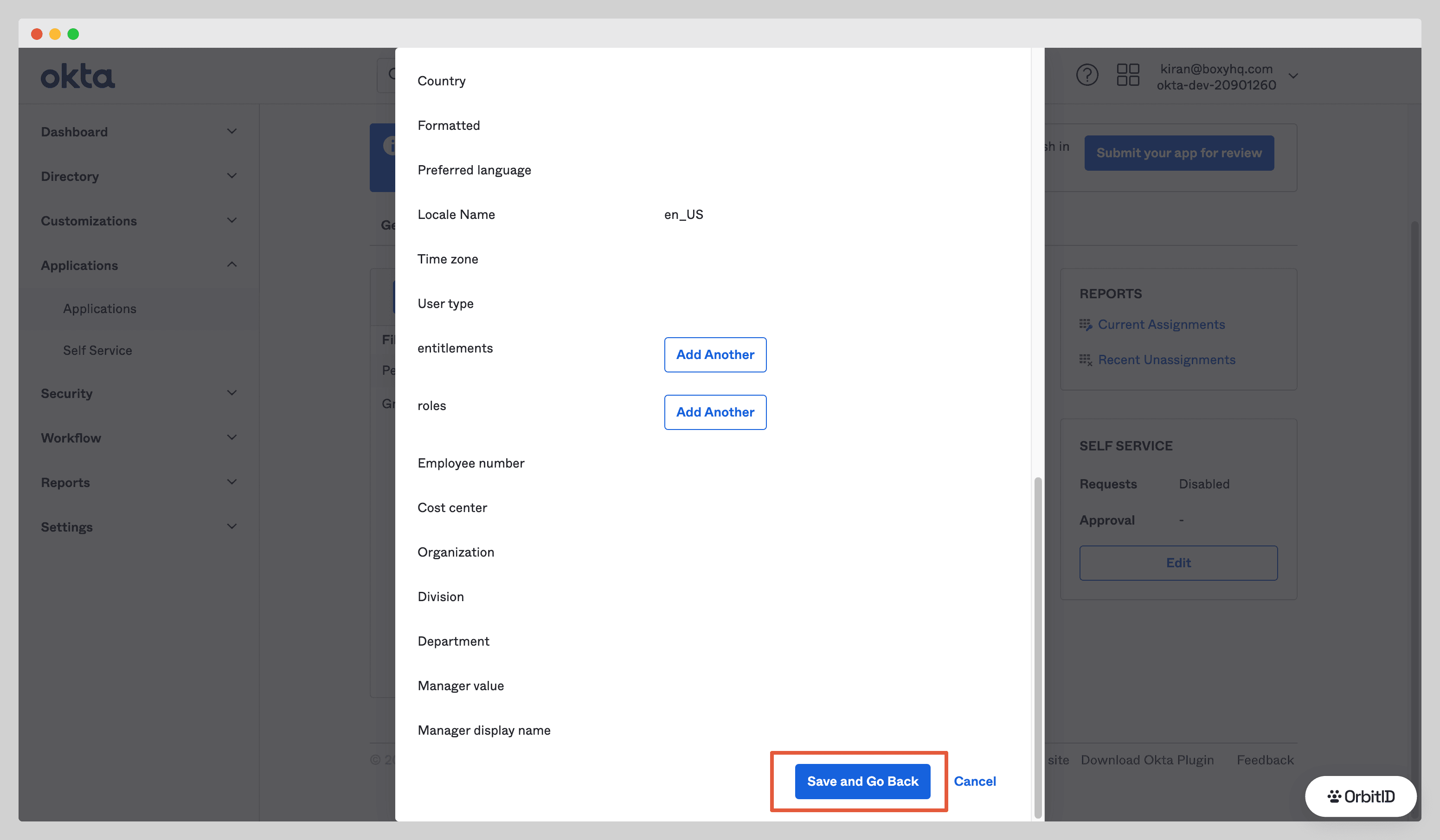
Review the attributes, click Save and Go Back, then Done. Okta provisions each assigned user and OrbitID emits a user.created event.
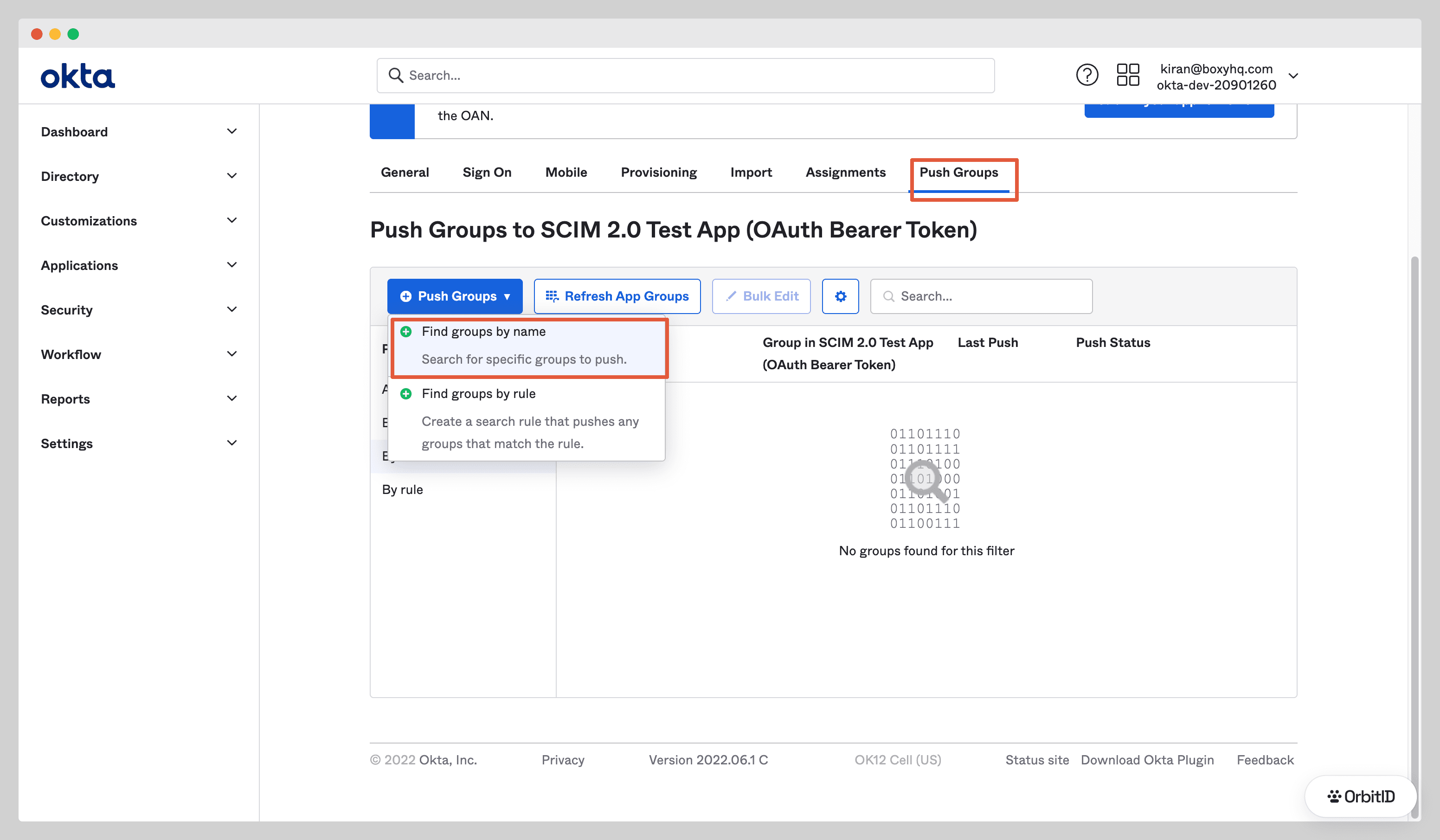
To sync group memberships, open the Push Groups tab, click Push Groups and choose Find groups by name.
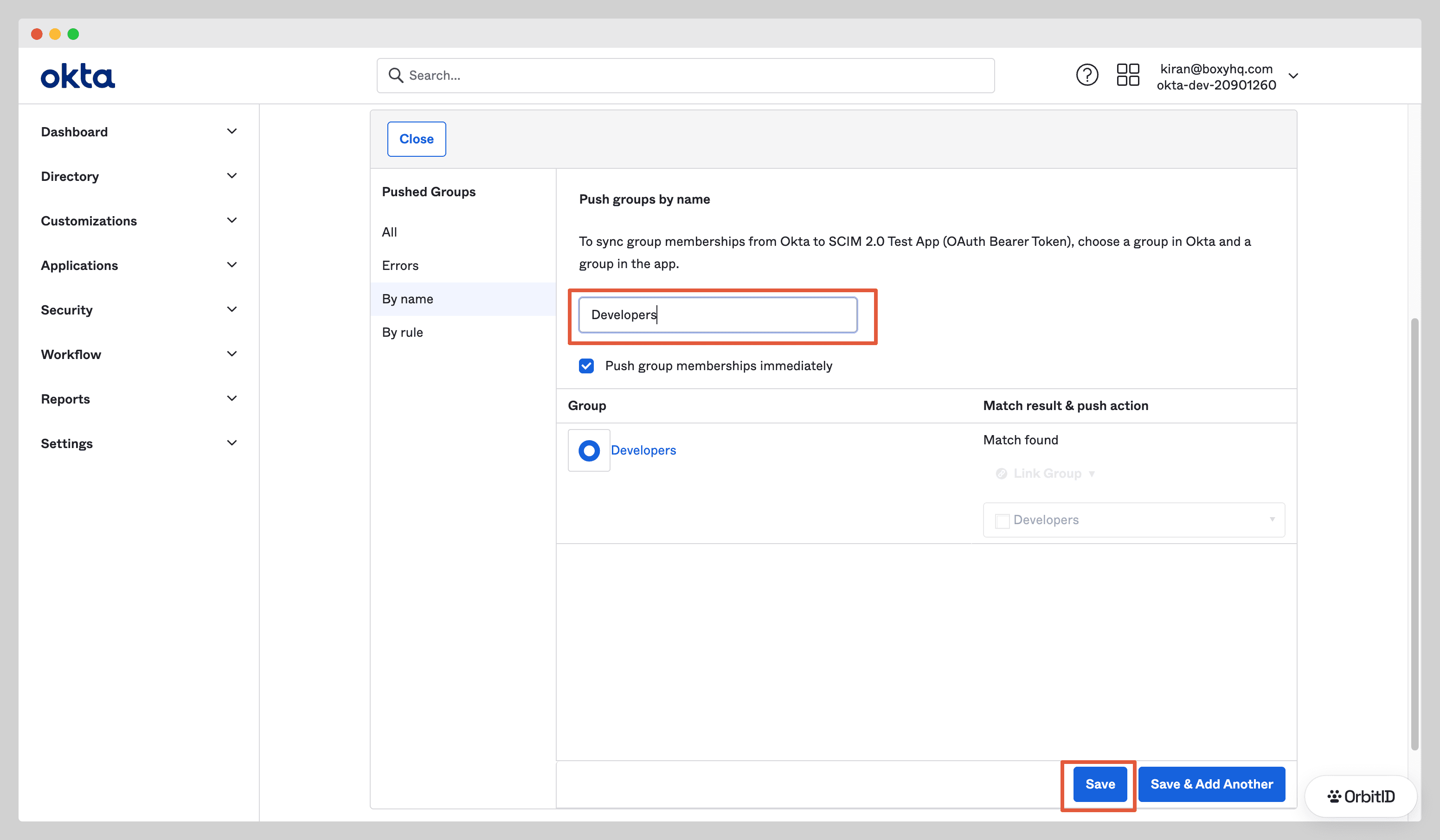
Type the group name, keep Push group memberships immediately checked and click Save. OrbitID emits group.created and group.user_added events for the group and its members.
Assigning a group under Assignments provisions its members as users; pushing it under Push Groups also creates the group itself in OrbitID. Do both if you want group memberships in your app.